Family Tree Poster
Load a GEDCOM file, choose who to print and the paper size, and download a poster PDF. It is made in your browser and your file is not uploaded.
Recent
Your last 10 settings, saved only in this browser. Nothing is uploaded.
Want a print-ready poster edition? Join the waitlist
We are planning a print-ready family tree poster edition (PDF) made from your GEDCOM file. Leave your email and we write to you once, when it launches. The price is announced at launch. This is not an order and you pay nothing.
We store your email, the language and page you signed up on, the date and time, and a country code. We use it only to tell you when posters launch; it is never shared. To unsubscribe, email support@lineagesmith.com with the word "unsubscribe". What we store.
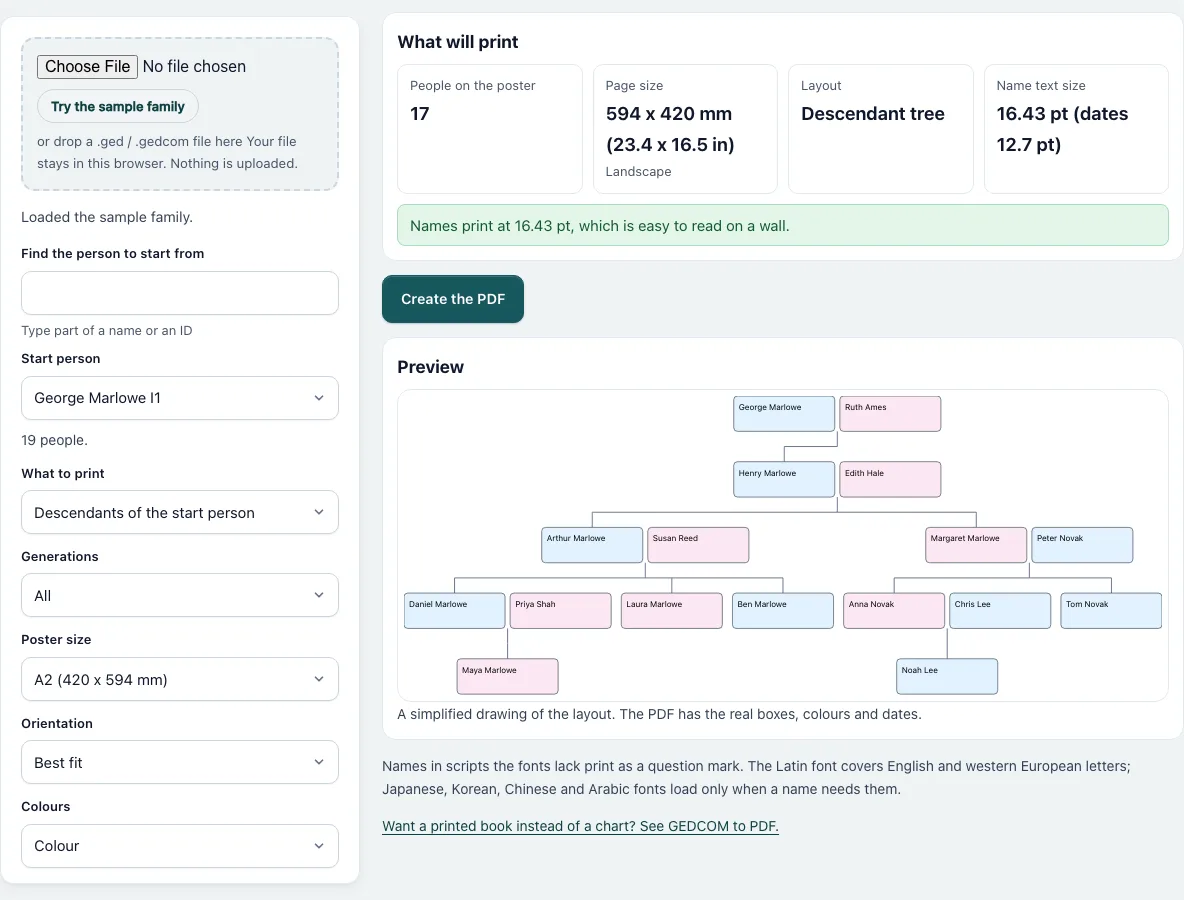
How to make a family tree poster
- Press “Choose File” and pick your .ged or .gedcom file, or drop it on the dashed box. “Try the sample family” loads a made-up family.
- Under “Find the person to start from” type part of a name or an ID, then pick the person in “Start person”.
- In “What to print” choose descendants, ancestors or the whole tree. “Generations” limits how far the chart goes.
- Choose the “Poster size”, the “Orientation” and the “Colours”: colour, black and white, or sepia.
- Read the summary on the right. It lists the number of people, the page size, the layout and the name text size. A green note means the names are easy to read. A yellow or red note means they are small: press “Suggest a paper size” and then “Use” to apply the result.
- To print on a home printer, tick “Print the poster on small sheets (tiles)”, pick A4 or US Letter and an overlap of 5 to 20 mm.
- For a print shop, set a bleed of 3 or 5 mm and tick “Add crop marks”.
- Tick “Hide living people” before you share the file. Choose the language of the printed words if you do not want English.
- Press “Create the PDF”. The download starts by itself.
How big does a family tree poster need to be?
It depends on the number of boxes, not on the number of pages you want. The tool lays the tree out, scales it to the paper and reports the size of the names it ends up with. As a guide, names of 8 points or more count as easy to read, 6 to 8 points as small and under 6 points as too small. The dates line under each name is flagged below 4 points. The 19-person sample family prints at 16.4 points on A2. A generated file of 2,003 people prints its names at 5.2 points even on 36 x 48 inch Arch E paper, and at 5.0 points on A0.
What does “whole tree” do with a large file?
It first tries a layered tree. If names would print under 6 points, it switches to a fan-down tree, and if they are still under 6 points, to an outline in columns. The summary names the layout it used. A tree with more than 400 boxes is not drawn as a preview, but the PDF is made the same way.
How do I print a large poster on A4 sheets?
Tick the tile option. The poster keeps its chosen size, for example A1, and is cut into overlapping sheets of A4 or US Letter with 10 mm margins. An A1 poster (594 x 841 mm) on A4 with a 10 mm overlap needs 3 x 5 = 15 landscape sheets. Sheets with nothing on them are left out, and the PDF starts with an assembly page that shows the grid. Every sheet has crop marks and a label such as A1 or B3 that names its neighbours.
Are living people hidden?
With “Hide living people” ticked, anyone with no death or burial record who was born less than 110 years ago is printed as “Living” with no dates, and so is anyone marked private. When a person has no birth date, the dates of children, parents or partners decide, and with no information at all the person counts as living. It is a rule of thumb, so read the result before you share it.
Frequently asked questions
Does the poster have a watermark?
No. The PDF has no watermark and no logo. Only the title, the subtitle and the chart are printed.
Can it make an ancestor fan chart?
Not a circular one. “Ancestors of the start person” prints a tree that grows to one side, with the start person at the root. The whole-tree option can switch to a fan-down layout, which is a tree that folds wide families to fit the page, not a circle.
Is my GEDCOM file uploaded?
No. The page reads the file in your browser, and a background worker in the same page writes the PDF. The only requests made are for the PDF code and the font files.
Why do some names print as question marks?
The Latin font covers English and western European letters. Japanese, Korean, Chinese and Arabic fonts are loaded only when a name needs them. A character none of the fonts has prints as a question mark.
What file name does the download get?
It is named after the paper, for example family-tree-poster-a2.pdf, or family-tree-poster-a1-on-a4.pdf for tiles. Your browser may rename it if a file with that name exists.
Are the translations of the printed words correct?
English is the reviewed text. The other 19 languages in the list are marked “(draft)” because native speakers have not reviewed them.
Related tools. Pick the one that matches the next step:
- GEDCOM to PDF prints the same file as a book with one block per person.
- Descendant Chart draws one branch on screen before you print.
- Family Group Sheet prints one couple and their children on a single page.
- Remove Living People From GEDCOM makes a cleaned file you can share instead.
- GEDCOM Viewer checks the people in the file first.
- GEDCOM Validator finds date and link problems that would print wrongly.
- Cousin Chart shows how two people in the tree are related.