Remove Living People From Gedcom
Choose a GEDCOM file, check who counts as living, and download a copy in which those people are hidden or removed.
Recent
Your last 10 settings, saved only in this browser. Nothing is uploaded.
How to hide living people in a GEDCOM file
- Press “Choose a GEDCOM file” and pick a .ged file, or drop it on the dashed box. “Try the sample family” loads a made-up family of 19 people.
- Under “What to do with living people” choose between replacing each living person with the name “Living” (the tree keeps its shape) and removing them completely.
- Set “Year to count from” and “Assume living if born within this many years” if the defaults (this year, 110) do not suit you.
- Choose what happens to people with no date at all and no dated relative: treat as living (the default) or as deceased.
- Tick “Also remove notes, sources and media that only living people used” if you want those records deleted too. It is on by default. “Keep custom (_TAG) lines” is off by default.
- Pick the text encoding of the new file: the same as the original, or UTF-8.
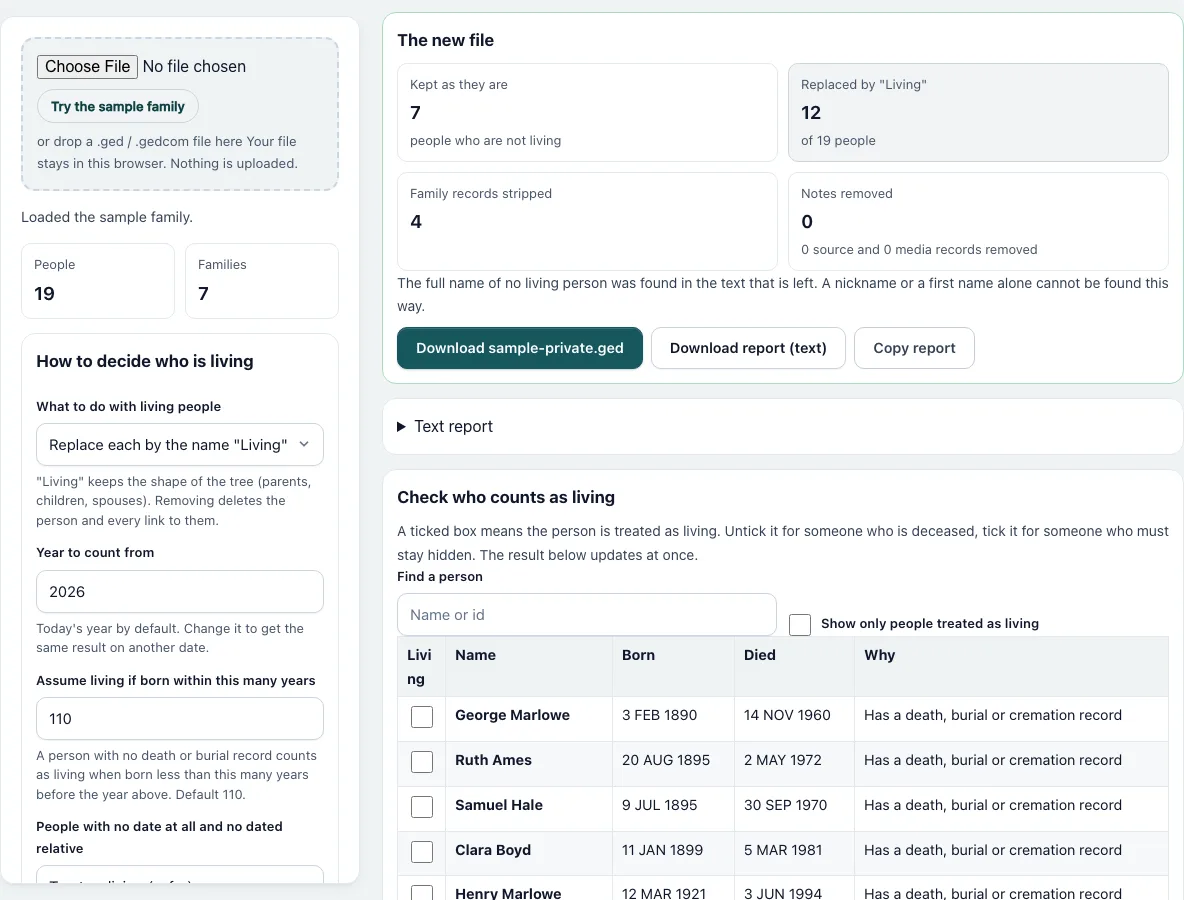
- Go through the table “Check who counts as living”. A ticked box means the person is hidden. Untick it for someone who has died, tick it for someone who must stay hidden. The column “Why” gives the reason; “set by you” marks your changes.
- Read “The new file”: kept, replaced or removed, family records stripped, notes removed. If a warning about full names appears, open the file and edit those lines.
- Press “Download” for the new .ged, or download or copy the text report.
How does the tool decide who is living?
It uses the engine’s rule with your settings. A person is not living when the file has a DEAT, BURI or CREM record for them, even without a date. Otherwise, with a birth date (birth, christening or baptism), the person is living if the year is less than 110 years before the year you chose. With no birth date, the rule looks at the first child with a birth year (living if born less than 95 years ago with the default 110), then the parents (less than 125 years), then the spouse (less than 110). If nothing is known, the person counts as living, which you can change. In the sample family, at 2026, 12 of 19 people are living.
What is removed from a living person?
In “Living” mode each living person keeps only the name “Living”, their sex, and the links to their parents’ and own families, including the PEDI value that marks an adoption. Everything else is deleted. In “remove” mode the person and every link to them are deleted, and families left with nobody are dropped. Any family with a living husband or wife loses its marriage and other events and its notes, but keeps its members.
Does it remove names from other people’s notes?
No. A note of a deceased relative that mentions a living person is free text. After processing, the tool looks for the full names of living people in the remaining lines and lists the records where it finds them. It cannot find a first name or a nickname alone.
What happens to notes, sources and media?
Notes, sources, media and repositories that only living people pointed to are deleted, with the “also remove” option on. A record that a deceased person also uses stays. With the option off, those records stay in the file, so their text is still readable.
Which file do I get?
For the sample family in “Living” mode all 19 people and 7 families remain, with 12 people named “Living”. In remove mode 7 people remain and the families with no one left (3 of them) are dropped.
Frequently asked questions
Is a file made with this tool safe to publish?
Not automatically. The tool follows a rule based on dates, and it is wrong for people with wrong or missing dates. Check the list, read the new file, and look at the name warning before you share it.
Who counts as living?
Anyone with no death, burial or cremation record who was born less than 110 years before the chosen year, plus people judged by their children, parents or spouse when their own birth is missing. You can change the number of years and tick or untick any person.
Is my file uploaded?
No. The file is read, changed and written in your browser.
Should I replace living people by “Living” or remove them?
“Living” keeps the structure, so a descendant chart still has the right number of boxes. Removing makes a smaller file, but children of removed parents can end up without a family link.
Does the new file keep the encoding of the original?
Yes by default. You can choose UTF-8 instead. If a character cannot be written in the original encoding, the tool tells you how many were replaced.
Does it change the people who are not living?
No. Their records stay unchanged, except that pointers to removed records are deleted.
Related tools
- Gedcom Viewer: Use it to read the new file and see who is left.
- Gedcom Validator: Use it to check that the new file has no broken links.
- Gedcom Converter: Use it to change the version or the encoding of the file.
- Gedcom Splitter: Use it to share only one branch of the tree.
- Gedcom Merge: Use it to combine two files before you hide living people.
- Gedcom To Csv: Use it to get a spreadsheet of the people.
- Descendant Chart: Use it to draw a chart from the new file.
- Family Group Sheet: Use it to print one family.